Common Graphics Card Problems and How to Fix Them
31 December 2025
When your screen flickers like a ghost in an old horror movie or colors suddenly go haywire like a kaleidoscope gone wrong, your graphics card might be crying for help. As PC users, gamers, content creators, or just everyday folks trying to keep Zoom calls going, our graphics cards are the unsung heroes. But when they misbehave, chaos ensues. Don’t worry, though—you don’t need to be a tech wizard to figure it out.
This article dives deep into the most common graphics card problems and dishes out tasty, actionable fixes in a way that even your grandma could follow (okay, maybe if she's a cool grandma). Let's roll up our sleeves and troubleshoot together.
🖥️ The Heartbeat of Your Display: What the Graphics Card Does
Before we jump into problem-solving mode, it helps to know why this little slab of silicon matters so much. The graphics card, or GPU (Graphics Processing Unit), is what breathes life into images on your monitor. Whether you're gaming in 4K, editing a YouTube vlog, or just watching cat videos in HD, your GPU is hustling behind the scenes.Think of it like the creative brain of your PC. Without it, your screen becomes just a lifeless panel of glass and plastic.
🚨 Issue #1: Screen Flickering and Artifacts – The Poltergeists of Pixels
Picture this: You’re in the middle of a game, and suddenly your screen looks like it’s been possessed. Lines creep in, colors distort, and everything starts glitching—classic signs of screen artifacts.🔧 The Fix:
- Check your cables: Loose or damaged HDMI/DisplayPort cables can mimic GPU issues. Try switching them.- Update your drivers: Head to NVIDIA, AMD, or Intel’s official site. Outdated drivers are one of the most common culprits.
- Lower your overclock: If you're pushing your GPU beyond its limits, it might be screaming for mercy. Dial it back a few notches.
- Cooling matters: Artifacts can also mean overheating. Clean dust off your GPU fans and ensure airflow in your case.
Pro Tip: If things still look funky in BIOS or Safe Mode, you might be dealing with hardware failure.
🧊 Issue #2: Overheating – When Your GPU Feels the Heat
High performance comes at a price—heat. Your graphics card is basically a mini furnace when it's working hard. But when temps soar too high, performance tanks or the system crashes completely.🔧 The Fix:
- Monitor temps: Use tools like MSI Afterburner or HWMonitor. Idle temps should hang around 30-50°C.- Clean your rig: Dust is your GPU’s worst enemy. A can of compressed air can work wonders.
- Apply new thermal paste: If your card is a few years old, replacing thermal paste can significantly reduce temps.
- Reconfigure airflow: Add intake and exhaust fans to keep those hot zones cool.
Quick Analogy: Overheating is like running a marathon in a winter coat—eventually, your body gives up.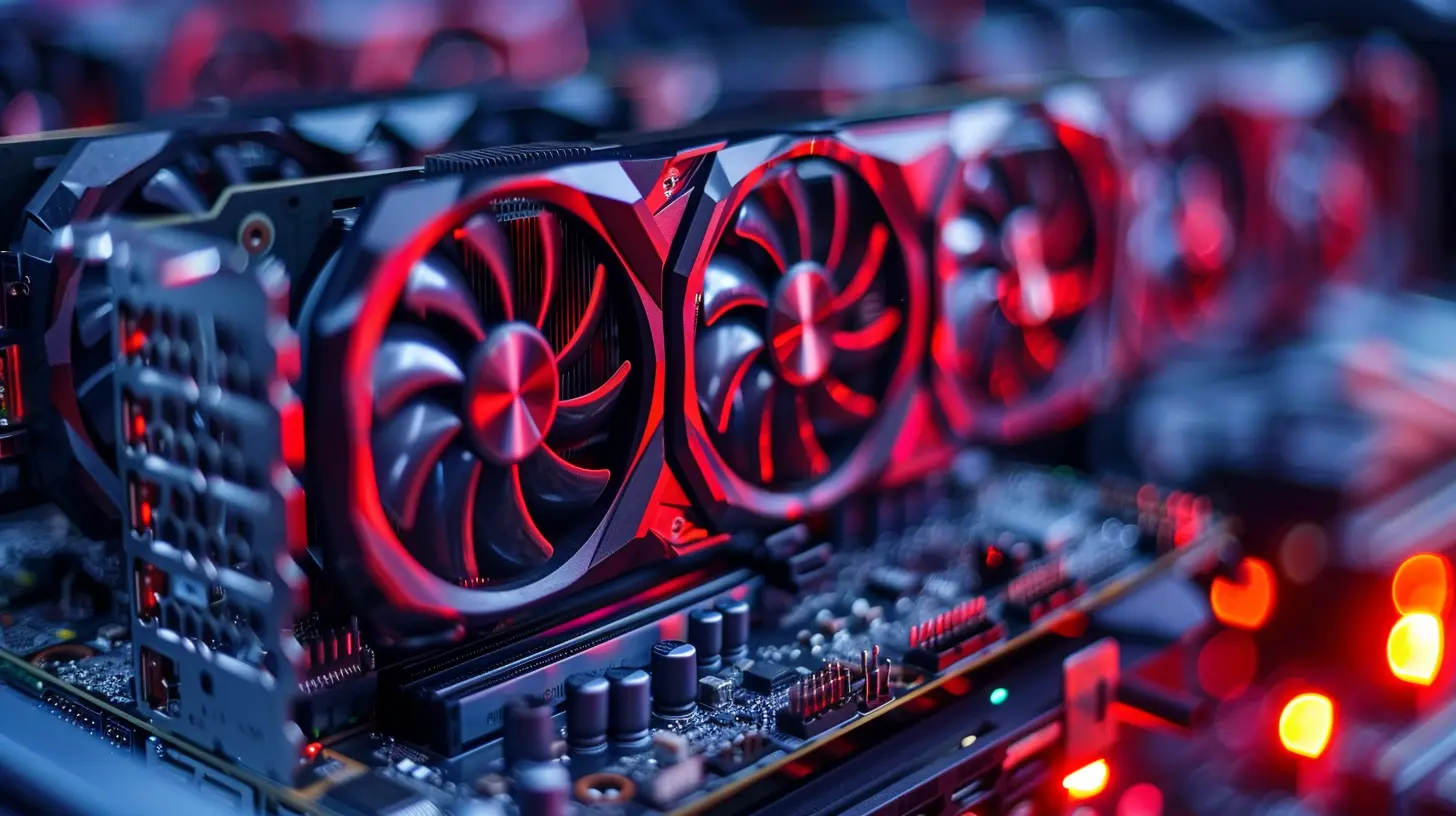
🕳️ Issue #3: Black Screen on Boot – When Nothing Shows Up
You hit the power button and... nothing. Just a black screen staring back at you like a bad breakup text. Ugh.🔧 The Fix:
- Reseat the GPU: Power down your PC, pop open the case, and gently remove and reinsert the graphics card.- Check the PSU: Make sure your power supply is delivering enough juice. Underpowered GPUs act grumpy.
- Try integrated graphics: Connect your monitor to the motherboard to check if the GPU is the issue.
- Clear CMOS: Resetting the BIOS settings by removing the CMOS battery for a few minutes can fix weird boot issues.
Heads-Up: If your GPU works on another PC, you might be looking at a motherboard issue instead.
🎮 Issue #4: Low FPS and Lag – The Sluggish Symphony
Your game lurches like it’s stuck in molasses. Enemies teleport, textures pop in three seconds late, and you're getting rekt in what should be a breezy mission. What gives?🔧 The Fix:
- Update everything: From GPU drivers to game patches, keeping your software current is your first step.- Turn down settings: Ultra settings look great but can be brutal. Drop shadows, anti-aliasing, or resolution.
- Background apps: Check Task Manager and close the CPU- and GPU-hungry culprits like Chrome or Discord overlays.
- Check thermals: Thermal throttling can reduce performance when things get too hot.
Real Talk: If you're gaming on a budget GPU from 2015 and expecting RTX 4090 performance, temper your expectations.
🖱️ Issue #5: Driver Conflicts – When Software Fights Back
Drivers are kind of like translators between your GPU and your PC. But sometimes—thanks to bad installs, Windows updates, or leftover driver files—they just stop speaking the same language.🔧 The Fix:
- Use DDU (Display Driver Uninstaller): Boot into Safe Mode, remove old drivers completely, and reinstall fresh ones.- Avoid auto installs: Manually download drivers from the manufacturer instead of letting Windows decide.
- Roll back updates: If the issues started after a recent update, go back to the previous stable version.
Pro Tip: Keep your drivers updated, but don’t be too quick to install brand-new beta releases. They may be buggy.
🌈 Issue #6: Color Distortion – When Your GPU Paints in the Wrong Shades
Everything’s pink, yellow, or just generally off. Your desktop background looks like a Van Gogh painting on acid.🔧 The Fix:
- Check your monitor cable: A bent pin or frayed wire can mess with signal quality.- Adjust color settings: Head to your GPU's control panel (NVIDIA/AMD) and reset color profiles.
- Try another display: Rule out monitor issues before blaming your GPU.
- Reinstall drivers: A corrupted driver can mess with color rendering.
It’s Like: Wearing sunglasses indoors. Everything’s off, and you're wondering if the world always looked this weird.
📉 Issue #7: GPU Not Detected – The Vanishing Act
Your PC is running just fine, but—wait—your GPU doesn't show up in Device Manager or BIOS. Did it just ghost you?🔧 The Fix:
- Check connections: Make sure the PCIe connector and power cables are fully seated.- Try another slot: Switch your GPU to a different PCIe slot and boot up.
- Update BIOS: Older BIOS versions on some motherboards don’t play nice with newer GPUs.
- Test it elsewhere: Pop it into another PC to confirm if it’s recognized.
Note: No recognition? That’s a red flag for a dead GPU. You may have to consider a replacement.
🔁 Issue #8: Random Crashes and BSODs – The Unexpected Exit
You’re watching a video, playing a game, or just browsing, when suddenly... bam! Your PC crashes or displays the dreaded Blue Screen of Death.🔧 The Fix:
- Check for driver corruption: Again, DDU is your best friend.- Run stress tests: Tools like FurMark can push your GPU and flag potential stability issues.
- Test RAM and PSU: Don’t forget—sometimes the GPU is innocent, and other components are to blame.
- Event Viewer logs: These can help pinpoint the exact cause.
It Feels Like: Trying to enjoy a movie, but the power cuts out every 20 minutes. Super annoying.
🛠️ Bonus Tips: Future-Proofing Your GPU
- Avoid cheap power supplies: A bad PSU can take your whole system down.- Regular cleaning routines: Don't let dust pile up like unpaid bills.
- Enable V-Sync or G-Sync/FreeSync: Prevent screen tearing in games.
- Keep your system updated: Operating system, drivers, firmware—everything matters.
- Stable overclocks only: If you're boosting clock speeds, make sure it's rock solid using benchmarking tools.
💬 Final Thoughts: When to Say Goodbye to Your GPU
Sometimes, despite all your efforts, the GPU just doesn’t want to play nice anymore. If you've tried everything and issues still persist, it might be time to consider an upgrade. Performance bottlenecks, constant driver conflicts, or physical damage? These are all signs it’s time to part ways.But don’t be too quick to splurge—diagnose smart, monitor regularly, and treat your GPU like the vital organ it is.
all images in this post were generated using AI tools
Category:
Graphics CardsAuthor:

Pierre McCord
Discussion
rate this article
2 comments
Blake McClendon
In a world increasingly reliant on visual technology, understanding graphics card issues illuminates the intricate relationship between hardware and performance. Delving into these challenges not only enhances our gaming and creative experiences but also fosters a deeper appreciation for innovation's imperfections.
January 9, 2026 at 4:09 PM
Pierre McCord
Thank you for your insightful comment! Understanding graphics card issues is indeed crucial for optimizing both gaming and creative experiences. Your perspective on the relationship between hardware and performance highlights the importance of addressing these challenges.
Reece Kane
Understanding issues empowers us to enhance our gaming experience.
January 8, 2026 at 6:04 PM
Pierre McCord
Absolutely! Awareness of these issues is key to optimizing performance and ensuring a smoother gaming experience.