How to Secure Your Files with Privacy Tools
31 May 2026
Let’s be honest—your personal files are more than just random data sitting on your device. They’re memories, important documents, work projects, private thoughts... essentially, they’re pieces of your digital life. And in a world where data breaches, hacks, and nosy apps are all too common, it’s never been more important to start locking things down.
Not sure where to start? You're not alone. But don’t worry—I’ve got you covered. We're diving deep into how to secure your files with privacy tools without turning into a full-blown cybersecurity expert. Ready to take back control over your digital self? Let’s do this.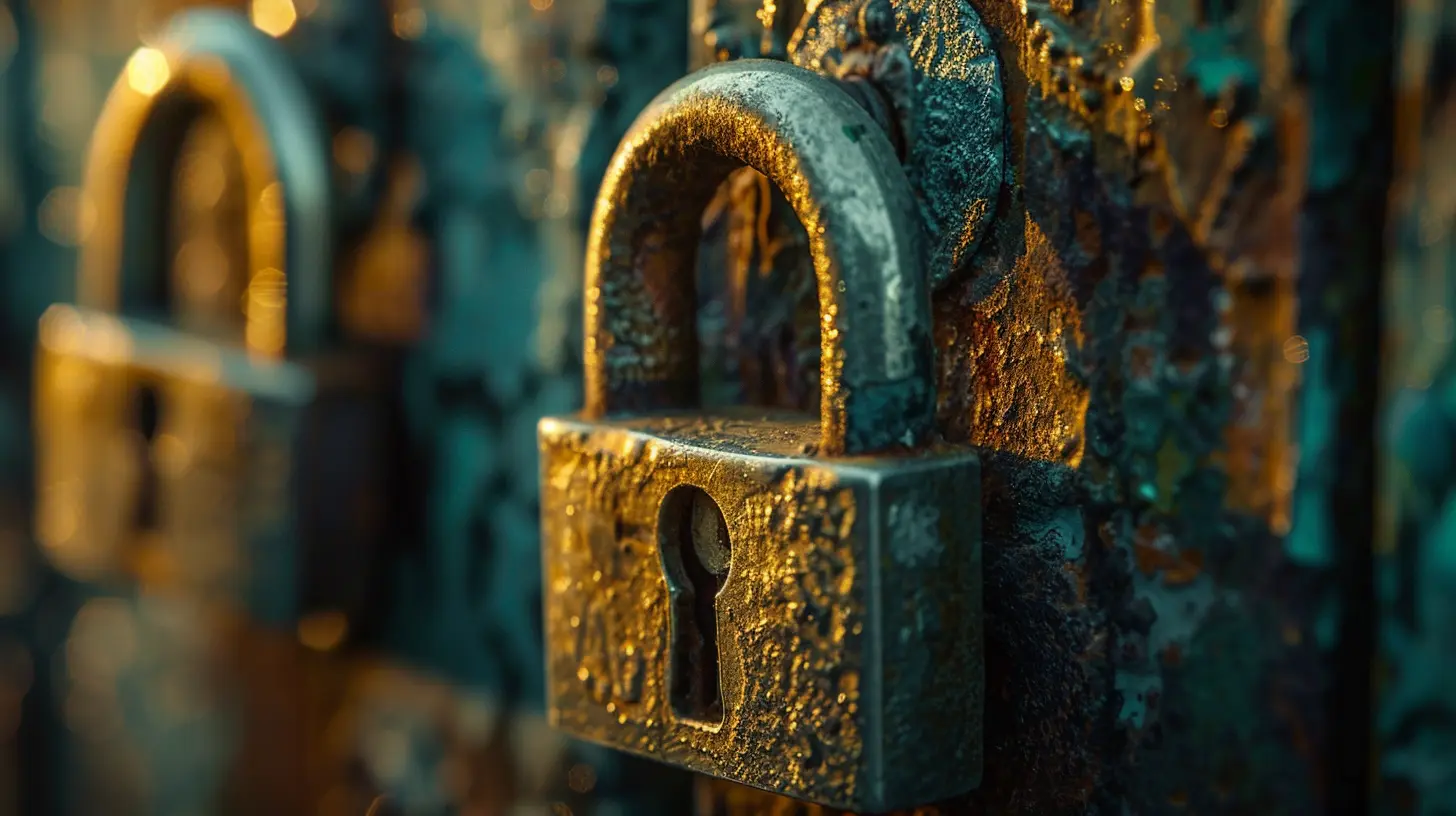
Why File Security Should Be a Priority
Think your files are too boring for hackers to care? Think again. It’s not just about what's in your files—it's about what they reveal.That travel itinerary? Gives away your location. Tax documents? Jackpot for identity theft. Even random photos can leak metadata that says more than you'd want.
Cybercriminals, nosy advertisers, and even some “friendly” apps love to dig through your data if you let them. Securing your files isn’t paranoid—it’s essential.
What Are Privacy Tools Anyway?
Before we get into the how, let’s talk about the what. Privacy tools are essentially software or practices designed to keep your information away from prying eyes. Think of them as digital vaults, invisibility cloaks, and bodyguards all in one.Some of the most effective ones include:
- File encryption tools
- Secure cloud storage
- Password managers
- Two-factor authentication (2FA)
- VPNs (Virtual Private Networks)
- Secure sharing platforms
Let’s break these down and see how they help lock your files down tight.
1. Encrypt Your Files—Seriously, This Is Step One
If you're not encrypting your files, you’re practically leaving your digital door wide open. Encryption scrambles your data into unreadable code unless you have the key. Even if someone steals your files, they can’t do anything with them. Sweet, right?? Tools to Try:
- VeraCrypt: It’s free, open-source, and allows you to create encrypted containers (like super-safe folders) on your system.- BitLocker (Windows): Comes built into some versions of Windows. Great for whole-disk encryption.
- FileVault (Mac): Apple’s built-in tool. Easy to switch on in System Preferences.
Most of these are set-it-and-forget-it kind of deals. You encrypt once and your files stay secure until you decrypt them.
2. Use Secure Cloud Storage (Yes, There’s a Right Way)
Cloud storage is super convenient. But storing stuff on the internet without precautions? That’s like keeping your jewelry in a public locker. You need a cloud storage service that actually values your privacy.☁️ Go With:
- Tresorit: End-to-end encrypted and business-level security. Perfect for sensitive files.- Sync.com: Zero-knowledge architecture—meaning even the company can’t see your data.
- Proton Drive (beta as of now): From the folks behind ProtonMail. Privacy-focused to the core.
Avoid mainstream services like Google Drive or Dropbox for sensitive stuff unless you’re encrypting before uploading.
3. Don’t Use '123456' As Your Password
Guilty of reusing the same weak password across multiple accounts? You’re not alone—but it’s a hacker’s dream. One breach, and your whole digital world is theirs.Time to call in a password manager.
? Best Password Managers:
- Bitwarden: Open-source, trusted, and super secure.- 1Password: Slick interface and solid encryption.
- Dashlane: Feature-rich and beginner-friendly.
These tools generate super-strong passwords, store them securely, and auto-fill them when needed. You just need to remember one master password (make it a good one).
4. Lock It Down with Two-Factor Authentication
So, now you've got strong passwords—but what if they still get compromised somehow? That’s where 2FA steps in.It’s like adding a deadbolt to your digital lock. Even if someone has your password, they can’t get in without a second layer of verification—usually a unique code sent to your phone or authenticator app.
? Recommended Apps:
- Authy: Great for syncing across devices.- Google Authenticator: Simple, no-frills, effective.
- Microsoft Authenticator: Works well for all accounts, even non-Microsoft ones.
Activate 2FA wherever it’s supported—email, cloud storage, banking, social media. Everywhere.
5. Hide in Plain Sight with a VPN
Ever feel like someone’s watching you when you're online? It’s not just your imagination. ISPs, governments, and advertisers often track your internet activity.Using a VPN encrypts your web traffic and hides your IP address, making it a lot harder for anyone to trace your steps. It’s like a digital invisibility cloak.
? Top VPN Picks:
- NordVPN: Fast, secure, and trustworthy.- ExpressVPN: Known for high-end security features.
- ProtonVPN: No-logs policy and great for privacy purists.
A VPN won’t secure your actual files, but it keeps your activity private, which is just as important in many cases.
6. Share Files Without Leaking Everything
Ever emailed a sensitive document and wondered who else might see it? Traditional file sharing is way too open. Time to level up with secure sharing platforms.? Secure File Sharing Tools:
- Firefox Send (currently offline, but if it returns, it’s gold): Encrypted file sharing with expiration dates.- WeTransfer Pro: Password-protected file transfers.
- ProtonDrive Link Sharing: Encrypted links, expiration, password protection.
And if you're using regular email, at least encrypt the file before attaching it. Better safe than sorry, right?
7. Physical Security Still Matters
Let’s not forget the old-school part of file security—protecting the devices themselves.- Lock your screen when you're away (seriously, it takes two seconds).
- Store external drives somewhere safe.
- Use biometric locks if your device has them (fingerprint, face ID, etc.).
- Backup everything. Twice. Once locally, once in the cloud (encrypted, of course).
If someone physically steals your laptop or phone, encrypted files and strong passwords are your last line of defense.
8. Keep Your Software Updated
We get it—updates can be annoying. But they often fix security holes that hackers love to exploit. Running outdated software is like inviting threats through the front door.Enable automatic updates when possible. If you’re manually updating, set a schedule. Trust me, future-you will be grateful.
Bonus Tip: Use File Access Logs (If Available)
Some file tools and cloud services offer access logs. These are like CCTV for your files—they show who accessed what, when, and from where.If your cloud platform offers this feature, check it regularly. Spot anything weird? Time to change those passwords and investigate.
Wrapping It Up: Your Files Deserve Better
Look, cyber threats are not going away anytime soon. But now you have the knowledge and the tools to protect your files like a pro. You don’t need to become paranoid or live off-grid—just a few smart habits and quality privacy tools can take your digital security to the next level.Start by encrypting your sensitive files. Switch to a secure cloud storage provider. Beef up your passwords and slap on 2FA. Layer by layer, you'll build a digital fortress that’s too much trouble for any average hacker.
Lock it down. Sleep better. Own your privacy.
all images in this post were generated using AI tools
Category:
Privacy ToolsAuthor:

Pierre McCord
Discussion
rate this article
1 comments
Macey McKinstry
This article offers practical insights into protecting your files. Using privacy tools is essential in today's digital landscape. Simple steps can significantly enhance your data security. I appreciate the clear guidance and emphasis on user-friendly solutions that anyone can implement with ease. Great read!
June 21, 2026 at 2:23 AM
Pierre McCord
Thank you for your kind words! I'm glad you found the insights helpful. Protecting our files is crucial, and I'm thrilled the guidance resonated with you.