How to Test Your Graphics Card’s Performance Using Free Tools
4 April 2026
So, you’ve invested in a shiny new graphics card, and now you’re itching to see if it was worth every penny. Or maybe your current GPU has been acting up, and you'd like to know if it's still up to snuff. Either way, you’re probably wondering, "How do I test my graphics card’s performance?" Don’t worry — you don’t need to spend a fortune on expensive benchmarking software. There are plenty of free tools out there that can give you a detailed insight into your GPU’s performance, and I'll walk you through the best of them.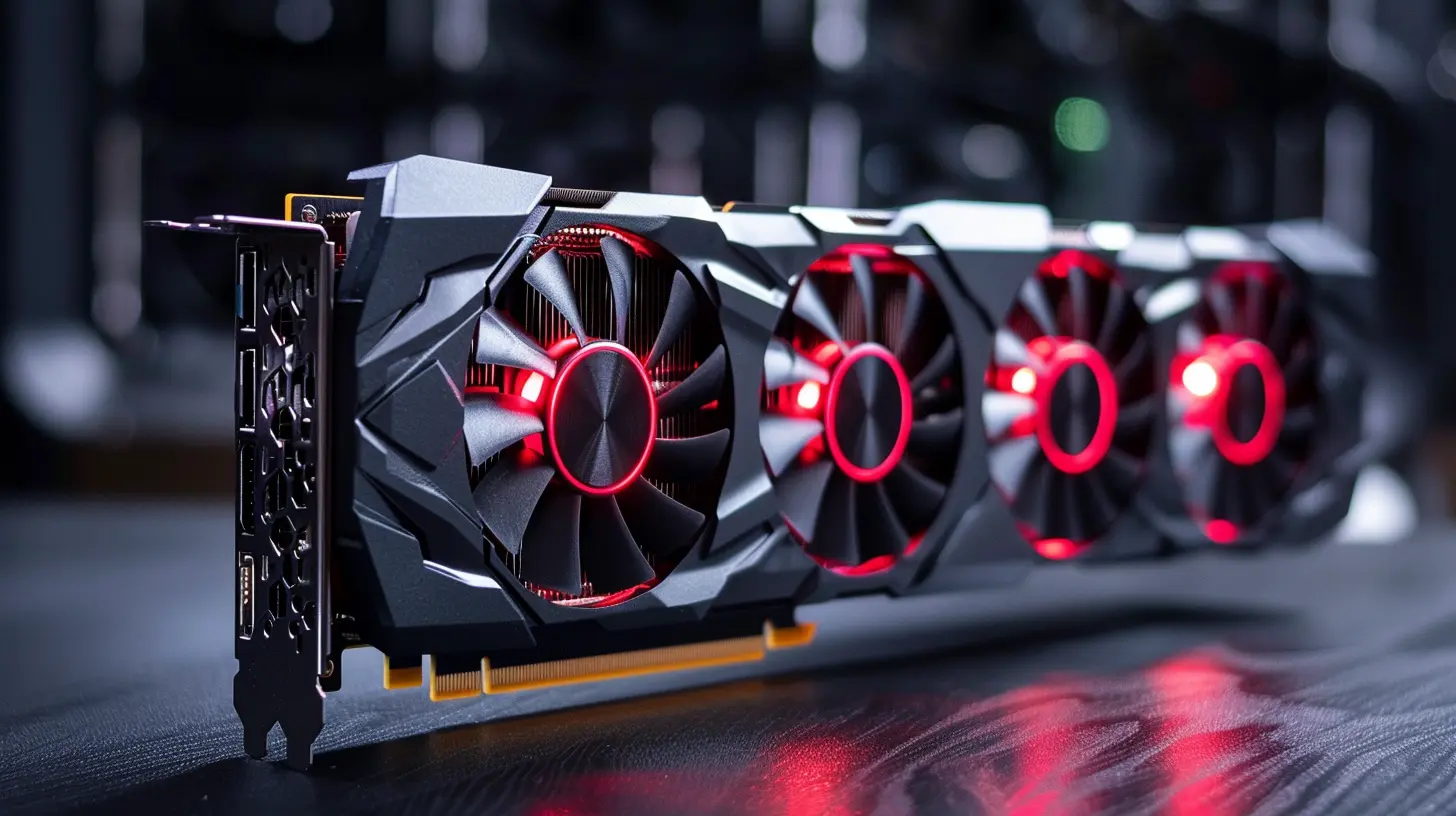
Why Should You Test Your Graphics Card’s Performance?
Before we jump into the "how," let’s talk about the "why." Why should you even bother testing your GPU’s performance?1. Optimize Your Gaming Experience: Whether you’re playing AAA games or casual indie titles, your GPU is the heart of your gaming rig. Testing its performance will help you understand what settings you can realistically run your games at without sacrificing frame rates.
2. Check for Stability: Overclocking your GPU? Great! But you also want to make sure everything is stable. Pushing your GPU too hard can lead to crashes, glitches, or even hardware damage over time. Running stress tests can help you find a stable overclock.
3. Diagnose Issues: If you’re experiencing stuttering, screen tearing, or random crashes, your GPU might be the culprit. Running performance tests can help you determine if your graphics card is running as it should—or if it’s time to start saving for a replacement.
4. Benchmark Comparisons: Curious to see how your GPU stacks up against others? Benchmarking allows you to compare your card’s performance against other users with similar setups. This can help you understand if your GPU is underperforming or performing as expected.
Now that we’ve covered the importance of testing, let’s dive into how you can test your graphics card’s performance using free tools.
What Are the Best Free Tools to Test Your GPU Performance?
There are tons of free tools out there, but to save you time, I’ve narrowed it down to the most reliable and user-friendly ones. These tools will help you test your GPU’s performance, stability, and thermal limits.1. FurMark
FurMark has been a go-to tool for stress testing GPUs for years. It’s designed to push your graphics card to its limits and see how it handles extreme stress. The tool runs a 3D rendering task that puts a lot of pressure on your GPU (think of it as a treadmill cranked up to the max). It’s an excellent way to check your GPU’s thermal performance and ensure it won’t overheat under heavy load.How to Use FurMark:
1. Download FurMark from the official website.2. Open the software and select your desired resolution and anti-aliasing settings.
3. Press "Burn-in Test" to start the stress test.
4. Monitor your GPU temperatures and performance during the test.
What to Watch For:
- Thermal Throttling: If your GPU gets too hot, it will automatically reduce its clock speed to cool down. If you notice this happening, it might be time to clean out the dust or invest in better cooling solutions.- Stability: If your GPU crashes or artifacts (strange colors or shapes) appear on the screen, your GPU might be unstable, especially if you’ve been overclocking.
2. 3DMark (Free Version)
3DMark is one of the most popular benchmarking tools out there, and while the full version costs money, you can use the basic version for free. 3DMark runs a set of demanding graphical tests to simulate gaming performance. It’s great for both benchmarking and comparing your GPU’s performance with others.How to Use 3DMark:
1. Download the free version of 3DMark from Steam or the official 3DMark website.2. Choose the "Time Spy" benchmark for DirectX 12 or "Fire Strike" for DirectX 11.
3. Run the benchmark and wait for it to finish.
4. After the benchmark is done, 3DMark will give you a score that you can compare with other systems.
What to Watch For:
- Overall Performance: Pay attention to your benchmark score and compare it to similar setups. If your score is way lower, there could be an issue.- Frame Rates: 3DMark will also show you the average frame rates your GPU achieved during the test. This is a good indicator of how well your GPU will handle high-end games.
3. MSI Afterburner
MSI Afterburner is primarily known for its overclocking capabilities, but it’s also a fantastic tool for monitoring and benchmarking your GPU. It works with almost any graphics card, regardless of the manufacturer (not just MSI cards), making it a versatile tool for any PC gamer.How to Use MSI Afterburner:
1. Download MSI Afterburner from their official website.2. Open the software and click on the "Settings" icon to configure your on-screen display (OSD).
3. Enable the "Hardware Monitor" to track your GPU’s clock speeds, temperature, and frame rates while gaming or during benchmarks.
4. You can also use MSI Afterburner to overclock your GPU safely.
What to Watch For:
- Real-Time Performance: Monitor your GPU’s performance during actual gameplay. This can give you a more realistic picture of how your card performs than synthetic benchmarks alone.- Temperature: Keep an eye on those temps! If your GPU gets too hot, it could throttle performance or even shut down to prevent damage.
4. Heaven Benchmark
Heaven Benchmark by Unigine is another free tool you can use to test the performance of your GPU. It’s especially useful for testing how your graphics card handles intensive graphics during gaming since the benchmark is based on a 3D scene that looks like something out of a fantasy RPG.How to Use Heaven Benchmark:
1. Download Heaven Benchmark from the Unigine website.2. Open the software and select your desired resolution and graphics settings.
3. Press "Run" to start the benchmark.
4. Heaven Benchmark will display your average frame rate, minimum frame rate, and overall score once the test is complete.
What to Watch For:
- Frame Rates: Pay attention to both the minimum and average frame rates. If your minimum FPS dips too low, you may experience stuttering during gaming.- Visual Glitches: If you see any artifacts or screen tearing during the test, there may be an issue with your GPU or its drivers.
5. GPU-Z
While GPU-Z doesn’t perform benchmarks itself, it’s an essential tool for gathering detailed information about your graphics card. It’s lightweight, free, and gives you a wealth of data about your GPU’s specs, including clock speeds, memory usage, and temperature.How to Use GPU-Z:
1. Download GPU-Z from the TechPowerUp website.2. Open the software to view real-time data about your GPU.
3. Use the "Sensors" tab to monitor your GPU’s temperature, fan speeds, and clock speeds while running other benchmarks.
What to Watch For:
- Temperature Spikes: Keep an eye on your GPU’s temperature under load. If it’s running hot (consistently above 85°C), consider improving your cooling setup.- Clock Speeds: Make sure your GPU is running at the correct clock speeds. If it’s underclocking (running slower than it should), there could be an issue with power delivery or cooling.
How to Interpret Your Results
Once you’ve run the benchmarks, the next step is to understand what those numbers mean. Here’s a quick breakdown:1. Frame Rates (FPS): The higher, the better. Anything above 60 FPS is considered smooth for most games. If your FPS is below 30, you’ll likely experience stuttering.
2. Temperature: Ideally, your GPU should stay below 85°C under full load. If it’s consistently hitting 90°C or higher, it’s time to check your cooling or clean out your PC.
3. Benchmark Scores: Compare your scores with others who have similar hardware. If your score is significantly lower, it could indicate a problem with your GPU or other components in your system.
Final Thoughts
Testing your graphics card’s performance doesn’t have to be complicated or expensive. With the right free tools, you can get a clear picture of how well your GPU is performing, whether you’re gaming, overclocking, or just curious about its health. Tools like FurMark, 3DMark, and Heaven Benchmark are excellent for stress testing and benchmarking, while MSI Afterburner and GPU-Z help you monitor your GPU in real time.Remember, it’s not just about bragging rights. Regularly testing your GPU can help you catch issues early, optimize your gaming experience, and ensure that your card is running as efficiently as possible. So go ahead, fire up those benchmarks, and see what your GPU is really made of!
all images in this post were generated using AI tools
Category:
Graphics CardsAuthor:

Pierre McCord
Discussion
rate this article
2 comments
Vance McMahan
Great insights! These free tools make testing graphics cards accessible and straightforward for everyone.
April 12, 2026 at 4:57 PM
Pierre McCord
Thanks! I'm glad you found the insights helpful. These tools really do make testing easier for everyone.
Coral Perry
This article effectively highlights accessible tools for evaluating graphics card performance, making it invaluable for gamers and enthusiasts alike. The emphasis on free resources democratizes access to vital performance insights. Great job!
April 7, 2026 at 3:20 AM
Pierre McCord
Thank you for your kind words! I'm glad you found the article helpful in making performance evaluation more accessible. Happy gaming!