Tips for Picking a Graphics Card for Multi-monitor Setups
23 June 2026
So you're thinking about running a multi-monitor setup? Nice choice! Whether you're trying to crank up your productivity, immerse yourself in gaming, or build a workstation for video editing, choosing the right graphics card (GPU) is at the heart of it all. Multi-monitor setups look cool and offer tons of advantages, but they also come with some pretty specific hardware needs.
Let’s walk through everything you need to know before picking that all-important GPU. Trust me, rushing into this decision without doing your homework could be a pricey mistake. So grab a coffee, sit back, and let’s talk about how to make your multi-screen dreams a reality.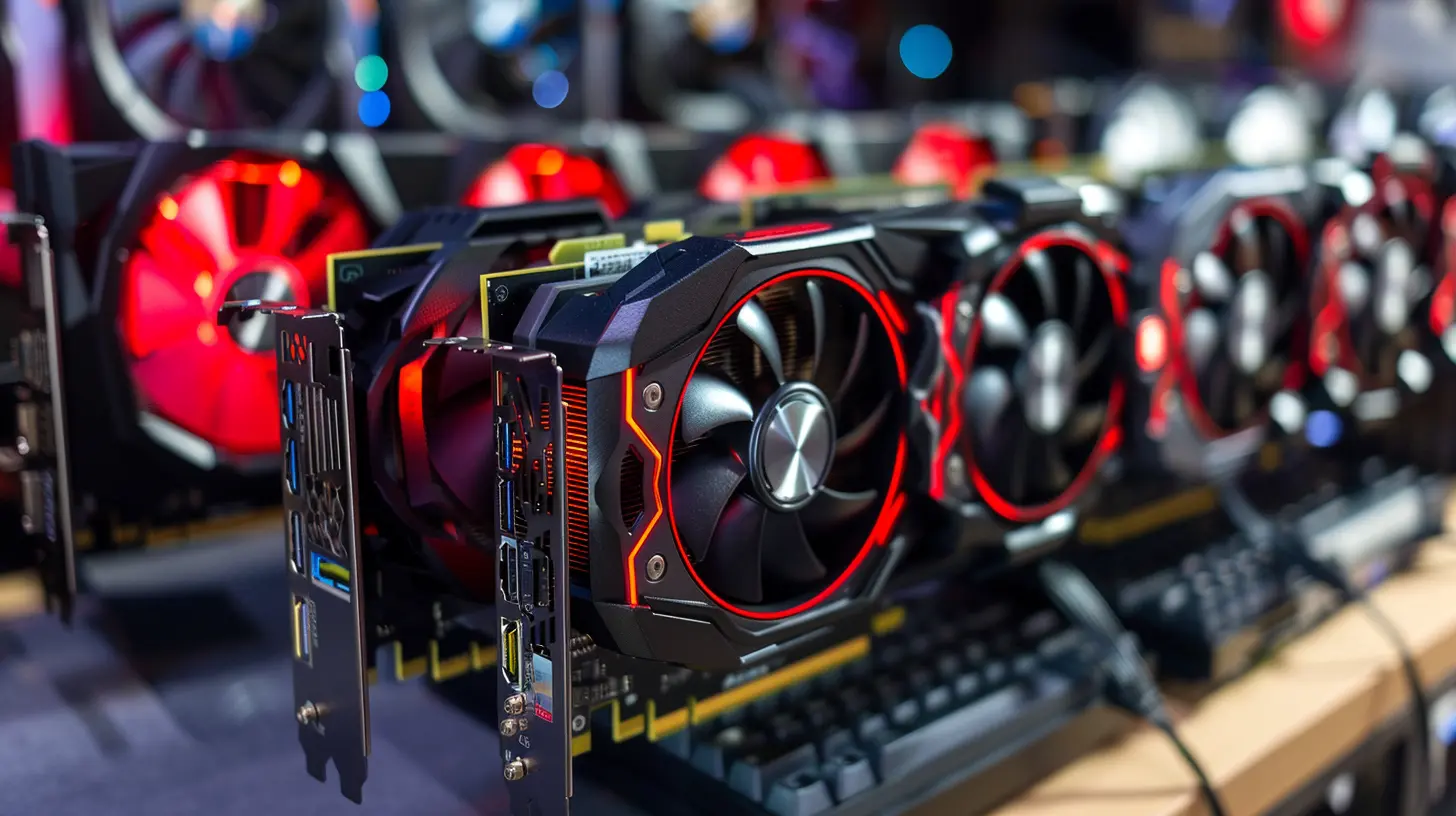
Why Go Multi-Monitor in the First Place?
Before diving into the hardware, let’s talk motivation. Why even bother with more than one screen?- Boosted productivity: More screens mean more space to arrange your apps. Keep your email on one monitor, your workflow on another, and maybe a YouTube playlist in the corner. ?
- Better gaming: Some games support ultra-wide resolutions that span across multiple monitors — that’s the kind of immersion single-screen setups can’t touch.
- Creative workflows: Video editors, 3D artists, and developers often juggle multiple software tools. Multi-monitor setups make cross-app multitasking a breeze.
Now that you’ve got your “why,” let’s cover the “how.”
1. Know What You Want to Do With the Setup
Not all multi-monitor needs are created equal.- Casual use: Just want to browse or stream on multiple screens? You won’t need a powerhouse.
- Gaming: Yep, you’ll need a capable GPU that can keep up with high refresh rates and resolutions across multiple displays.
- Creative tasks: Designers, editors, or engineers? You’ll want a card that supports accurate color output and maybe even 10-bit color depth.
Your use case determines everything — performance, ports, and your budget.
2. Check the Number and Type of Display Outputs
This might be the most overlooked step — and it’s a deal-breaker.You need a graphics card that has enough video outputs for the number of monitors you plan to hook up. Sounds simple, right? Here’s what to look for:
✅ Common Output Types:
- HDMI: Great for TVs and most modern monitors.- DisplayPort: Ideal for high refresh rates and resolutions.
- DVI: Older but still functional.
- USB-C / Thunderbolt: High-end output, often found in pro-level cards and laptops.
Now, let’s say you’ve got three monitors. Don’t assume any card can handle it. If your GPU has two HDMI ports and one DisplayPort, you’re probably good. But if it only has two outputs, you’re gonna need adapters — and sometimes that’s more headache than it’s worth.
Also, check if the outputs can be used simultaneously. Some cards may have multiple ports, but only support a certain number of active displays at one time.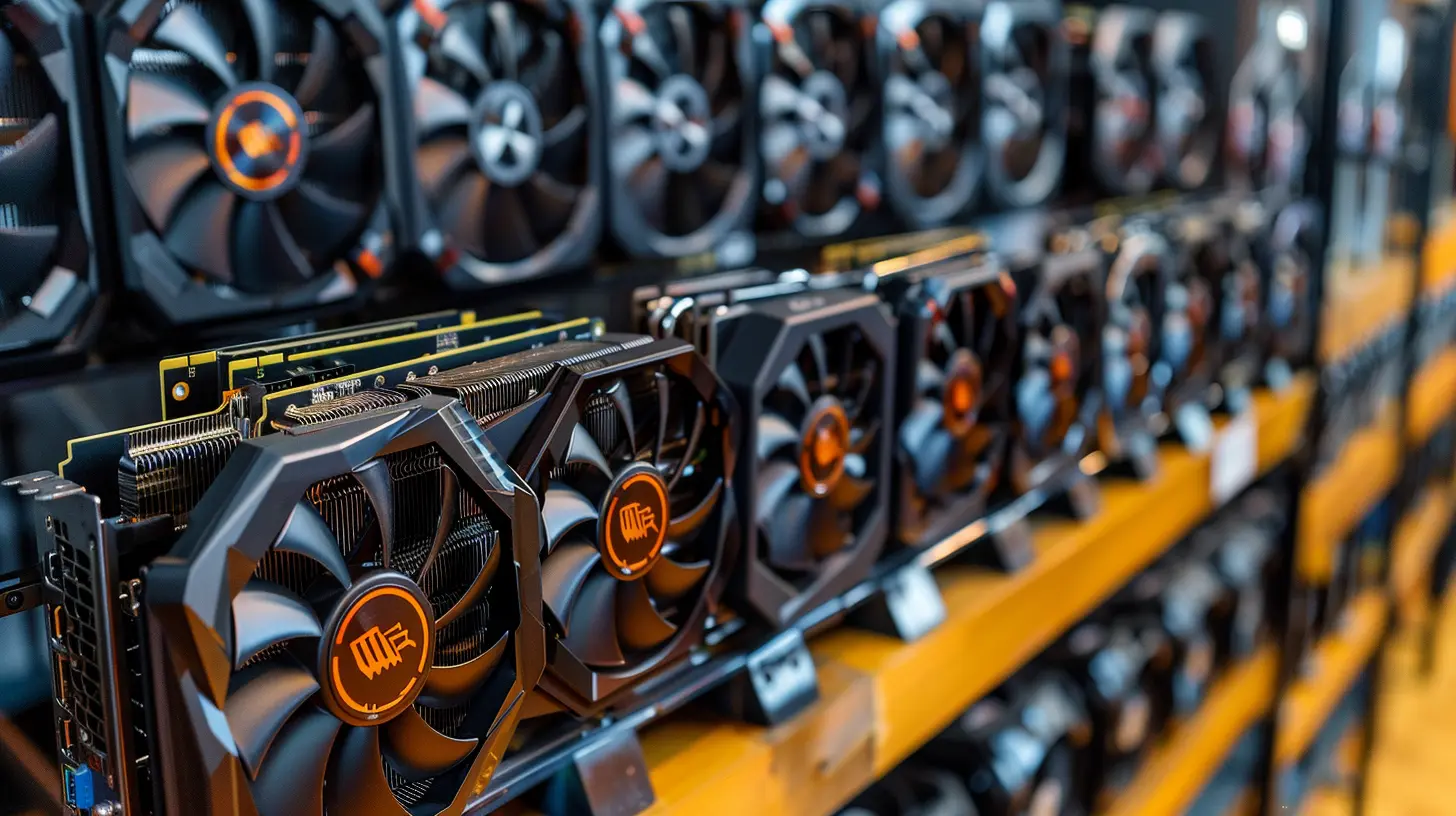
3. VRAM Matters—Big Time
Let’s talk about video memory, or VRAM. Think of it as your GPU’s short-term memory. When you’re running multiple monitors, it has to store way more data — resolutions, textures, rendering info, etc.How much do you really need?
- 2GB-4GB: Fine for basic use or just watching content.- 6GB-8GB: Ideal for mid-level gaming or creative work on two to three screens.
- 10GB+: Perfect for 4K setups, high-end gaming, and professional-grade workloads.
More VRAM helps smooth out performance and prevent stutter when things get hectic across monitors.
4. Pay Attention to Resolution and Refresh Rate
Each monitor has its own resolution (1080p, 1440p, 4K) and refresh rate (60Hz, 144Hz, etc.). Multiply that across two, three, or more screens and your GPU now has a mountain to climb.Here's the deal:
- Running three 1080p monitors is much easier on your GPU than two 4K monitors.- If you’re gaming on a 144Hz triple-monitor setup, your GPU needs to push out frames REALLY fast. That’s a lot of horsepower.
So when picking a card, make sure its specs can support the kind of output demands you’re throwing at it. Some budget GPUs struggle with high-refresh-rate, multi-monitor configurations.
5. Consider Multi-GPU Setups Carefully
Ever heard of SLI or Crossfire? These are setups where you use two (or more) GPUs in tandem. Sounds awesome in theory, but there’s a catch — or several.- Compatibility issues: Not all games or apps support them.
- Driver headaches: Updates can break your setup.
- Power hogs: These setups can get real hot, real fast, and you’ll need a beefy power supply.
If you’re not 100% sure about going this route, stick with a single, high-performance GPU. It’s cleaner, easier to manage, and modern cards are insanely powerful on their own.
6. Don’t Forget About Power and Cooling
More monitors = more GPU work = more heat and power draw.High-end GPUs can need 250W+ of power. If your power supply (PSU) can’t handle the load, you’re setting yourself up for random shutdowns or worse, hardware damage.
- Make sure your PSU has enough wattage — 600W and up is a safe bet for multi-monitor setups.
- Consider your case airflow. A toasty GPU running multiple displays will need good ventilation, especially if you’re gaming or editing video.
Better to spend a bit more on proper cooling than fry your investment a few months in.
7. Software and Driver Support — It Matters More Than You Think
Okay, this might sound boring, but driver support is huge.- NVIDIA vs AMD? Both are great, but NVIDIA tends to have more stable drivers, especially for creative applications.
- AMD, on the other hand, sometimes pulls ahead in raw performance-to-dollar ratios.
Also, check what kind of multi-display software comes with the GPU. AMD’s Eyefinity and NVIDIA’s Surround allow you to configure how your monitors behave — that’s a lifesaver for gamers and content creators.
You don’t want your monitors acting up every time you boot up your PC. Reliability is underrated until you don’t have it.
8. Budgeting: Don’t Blow All Your Cash on the GPU
It’s easy to get hyped and blow your whole budget on a top-tier graphics card, but your GPU isn’t the only star of the show.Think about the entire ecosystem:
- Monitors: Are they color-accurate? Do they support variable refresh rate?
- Cables: Are they high-quality and long enough?
- PSU & Cooling: Can they support your GPU long-term?
A balanced build will always work better than one expensive component surrounded by mediocre parts.
9. Compatibility With Your System
Don’t forget to make sure the card physically fits! Some graphics cards are massive with triple-fan coolers and require extra PCIe lanes.Also check:
- Motherboard slots
- Clearance inside your case
- Ports and BIOS support
There’s nothing worse than tearing open a box, trying to install your dream GPU, and realizing it won’t fit.
10. Future-Proofing — Is It Worth It?
Last but not least: should you future-proof?It’s a bit of a myth, but here’s the simple take — buy the best card you can afford that meets your current and near-future needs.
Tech evolves fast, and no GPU is “future-proof” forever. However, buying a solid mid- or high-tier GPU now can save you from needing an upgrade in 6 months.
Look for features like:
- Ray tracing support
- DirectX 12 Ultimate
- DLSS or FSR (from NVIDIA and AMD respectively)
- PCIe 4.0 compatibility
These are nice-to-haves that signal your GPU will stay relevant longer.
Final Thoughts
Setting up a killer multi-monitor workstation or gaming rig isn’t as simple as plugging in a few extra screens. But with a little planning and the right graphics card, you'll be crushing tasks, gaming like a beast, or editing like a pro in no time.Remember, it all comes down to your specific needs, your budget, and making sure all your hardware plays nicely together. Don’t overthink it, but don’t go in blind either. Your future multitasking self will thank you.
Got more than two monitors running? Multitasking like a champ? Let us know in the comments what GPU you went with and how it’s performing!
all images in this post were generated using AI tools
Category:
Graphics CardsAuthor:

Pierre McCord
Discussion
rate this article
1 comments
Troy Brown
Great insights on selecting a graphics card for multi-monitor setups! It can be overwhelming with so many options, but your tips make it easier to find the right balance between performance and value. Thanks for sharing!
July 7, 2026 at 4:11 PM
Pierre McCord
Thanks for the kind words! I'm glad the tips helped clarify the options for you. Happy gaming!