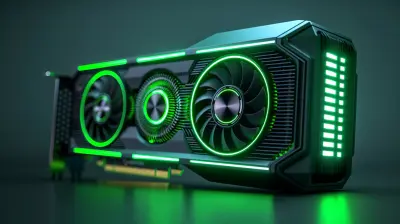
Best Practices for Cleaning and Maintaining Your Graphics Card
13 March 2026
Let’s be real for a second—your graphics card is kind of like the heart of your gaming or creative rig. It pushes pixels, keeps framerates smooth, and transforms your setup from a clunky box into a powerful machine. But just like any high-performance engine, it needs a little TLC now and then to keep running at full throttle.
If you’ve noticed your GPU temps creeping up, fans getting noisier, or performance dipping a bit, it might be time to give your graphics card a good cleaning and a proper check-up. Don’t worry—this isn’t some risky, techie-only process. You don’t need to be a hardware wizard. With a bit of patience, some basic tools, and the right approach, you can totally do this on your own.
In this post, we’re diving into the best practices for cleaning and maintaining your graphics card. Whether you're rocking an RTX 4090 or still holding strong with a GTX 1060, these tips are universal. Let’s keep that GPU in top shape, shall we?
Why Cleaning and Maintenance Actually Matter
Alright, before we jump into the how-to, let’s quickly cover the “why.”Your graphics card sits inside your PC case, exposed to constant airflow. That airflow? It carries dust, pet hair, lint, and all kinds of tiny gunk with it. Over time, all that stuff builds up on your GPU’s fans and heatsinks. The more buildup you get, the harder it is for your GPU to cool itself.
What does that lead to?
🔹 Higher temperatures
🔹 Louder fan noise
🔹 Reduced performance (thermal throttling)
🔹 Shortened lifespan
So yeah—giving your graphics card a cleanup is not just about aesthetics. It’s about performance and longevity.
How Often Should You Clean Your Graphics Card?
This depends on your environment. Got pets? Live in a dusty area? Do you smoke near your PC? If yes, you should be checking your GPU every 2 to 3 months. If your setup is in a relatively clean space, twice a year might be enough.Still, we recommend you at least peek inside your case once a month. Just give it a visual check. If you spot dust buildup, it’s time for a touch-up.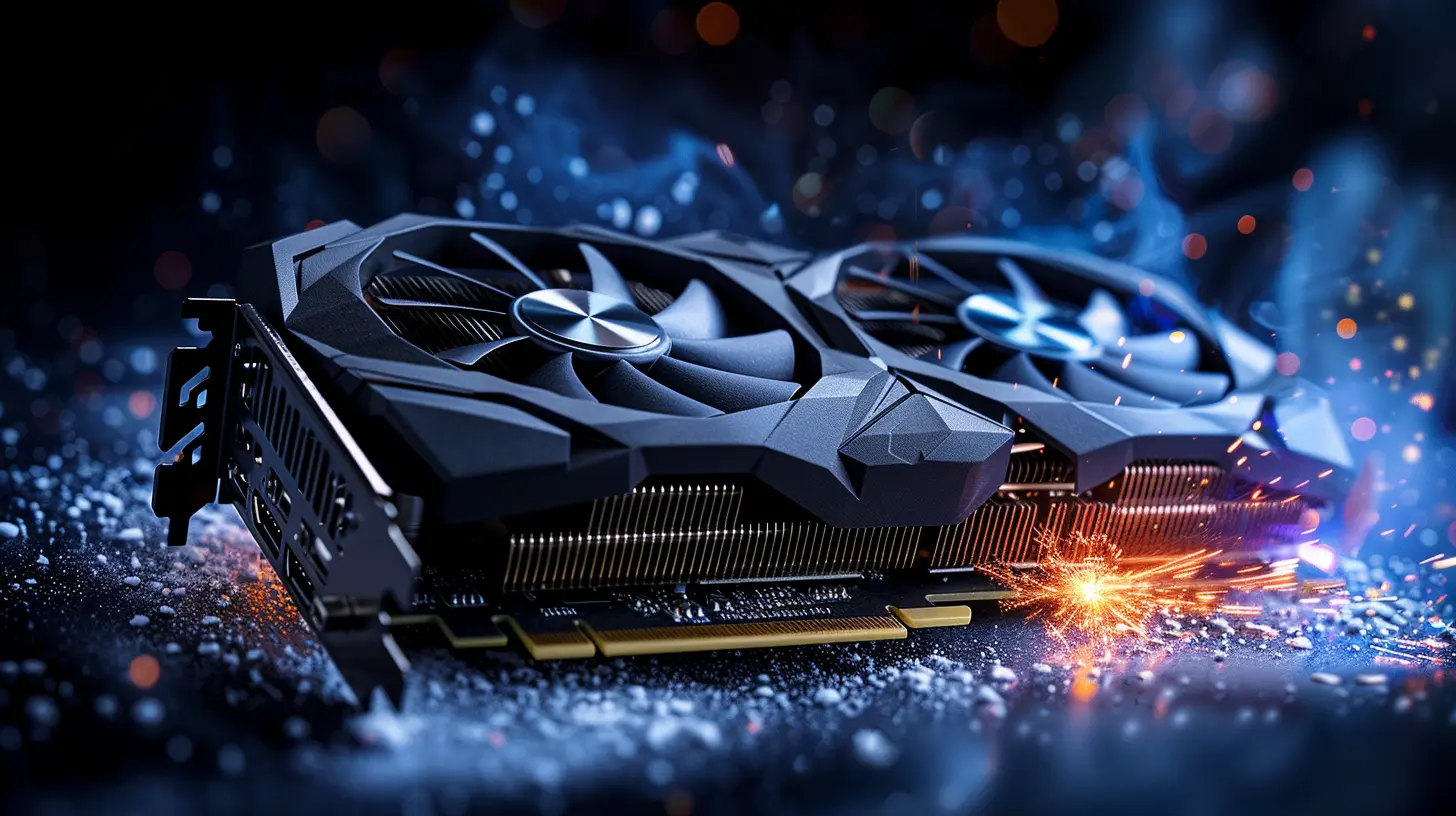
What You’ll Need to Clean Your GPU
Don’t worry—you’re not going to need a $150 toolkit or anything. Here’s a quick run-down of the essentials:- Compressed air can (your best friend)
- Soft brush (think: clean paintbrush or small makeup brush)
- Microfiber cloth
- Thermal paste (only if you’re reapplying paste)
- Philips screwdriver
- Antistatic wrist strap (optional, but good for safety)
- Cotton swabs and rubbing alcohol (for deep cleaning)
That's it. Most of this stuff you probably already have lying around.
Step-by-Step Guide to Clean Your Graphics Card
1. Power Down and Let Things Cool
First thing’s first—shut down your PC, unplug it from the wall, and let it sit for at least 10 minutes. You don’t want to mess with a hot GPU. Safety first, always.2. Remove the Graphics Card
If you're going to do more than a surface clean, it's best to actually remove the card.1. Open your case side panel.
2. Unscrew the GPU from the case’s PCI bracket.
3. Gently press the PCIe latch on your motherboard and slide the GPU out.
4. Place it on a clean, non-conductive surface (like the GPU’s original box or an anti-static mat).
Take your time. Don’t yank or force anything. Your GPU is delicate and expensive—treat it with respect!
3. Clean the Fans
Grab your can of compressed air and blow short bursts into the fan blades. Hold the fans in place while doing this to prevent them from spinning (spinning the fans too fast can actually damage the bearings).Use your soft brush to gently loosen any stubborn dust from the edges of the blades or between the fins.
Pro tip: Tilt the card slightly so dust falls away from the PCB instead of deeper into it.
4. Clean the Heatsink and Shroud
Use compressed air to blast away dust from the heatsinks and vents. Get in those hard-to-reach spots between the fins. The brush is handy here too. You’d be surprised how much dust can live in those little crevices.If your GPU has partial shrouding or is open-air, you’ll have better visibility. For fully enclosed coolers, just do your best to hit every possible vent and opening.
5. Wipe Down the Surface
Use a microfiber cloth to gently wipe the outer surfaces of the card. You’re not trying to polish it—just remove surface grime and fingerprints. Avoid touching the PCB directly with your fingers.If there's sticky residue or grime buildup, lightly dampen a cloth or cotton swab with some isopropyl alcohol (at least 90%) and gently clean the spot.
Optional: Deep Cleaning With Thermal Paste Reapplication
If your GPU’s thermal performance has really dropped, or if your card is older (2+ years), it might be time to reapply the thermal paste. This is optional, but worthwhile if you’re comfortable with advanced DIY.Here’s the basic rundown:
1. Disassemble the card – Remove the cooler carefully by unscrewing the screws on the back.
2. Clean the old thermal paste – Use alcohol and a microfiber cloth or cotton swab to gently wipe off the old compound from both the GPU die and heatsink.
3. Apply new thermal paste – Use a pea-sized dot (seriously, don't overdo it) of high-quality thermal paste.
4. Reassemble the card – Put everything back the way you found it.
If you’re not confident with this step, skip it. No shame in staying in your comfort zone. And remember: this may void your warranty, so check your GPU manufacturer’s policy before taking it apart.
Keeping Your Graphics Card Clean: Prevention Tips
Cleaning is great, but wouldn’t it be even better if you didn’t have to do it constantly? Here are some quick prevention tips to cut down on future maintenance:🔹 Use Dust Filters
Most modern PC cases come with dust filters. Make sure they’re installed and cleaned regularly. These little mesh screens are your first line of defense.🔹 Elevate Your PC Off the Floor
Especially if you have carpet—PCs on the floor suck in way more dust. Placing your case on a desk or raised stand helps immensely.🔹 Keep Pets Away
We love our furry friends, but cat hair and GPUs don’t mix. Try to keep your PC space off-limits to pets.🔹 Maintain Good Airflow
More airflow = less heat = less fan strain = less dust stuck inside. Keep your cables tidy, use organized fan placement (intake in the front, exhaust out the top/back), and don’t overcrowd your case with stuff.Signs It’s Time for a Clean or Maintenance
Not sure when your GPU needs attention? Watch for these warning signs:- Fans constantly revving up, even at idle
- Wildly fluctuating in-game temperatures
- Visible buildup of dust on the fans or heatsink
- GPU sounds louder than usual
- Sudden drops in GPU performance or frame rates
If any of these sound familiar, it’s definitely time to open up the case and bust out the compressed air.
What About Liquid-Cooled GPUs?
If you're using a GPU with a closed-loop AIO cooler, maintenance is generally less hands-on, but you still want to:- Check for dust buildup on the radiator and fans
- Periodically make sure the pump is functioning
- Replace thermal paste if temps get too high over time
For custom-loop users—well, you're probably already a pro at maintenance (and bleeding that loop is a whole other topic).
Final Thoughts
Your graphics card is one of the most critical (and expensive) pieces of your PC. Giving it a proper clean once in a while is like getting an oil change for your car—it keeps things running cooler, quieter, and longer.The whole process doesn’t take more than 30 to 45 minutes depending on how deep you go. And trust me, your GPU will thank you… in frames per second.
So go ahead—schedule that GPU spa day. You’ve earned it, and so has your hardware.
all images in this post were generated using AI tools
Category:
Graphics CardsAuthor:

Pierre McCord
Discussion
rate this article
2 comments
Gianna Lamb
Great tips! Regularly cleaning and maintaining your graphics card can significantly enhance performance and longevity. A must-read for any PC enthusiast!
March 14, 2026 at 4:19 AM
Pierre McCord
Thanks for the feedback! I'm glad you found the tips helpful. Happy gaming!
Willow McDaniel
Great tips! Keeping your graphics card clean is like giving it a spa day—refreshing and rejuvenating! Happy cleaning and happy gaming! 🌟🎮
March 13, 2026 at 5:02 PM
Pierre McCord
Thanks! It's true-a clean graphics card can make a big difference. Enjoy your gaming!